

Price Rules (Levels) Now Available in Beta In QuickBooks Online
A lot of my clients having been using what is known as Price Levels in QuickBooks for Desktop and until now, this has been a deal breaker for those that needed this function in QuickBooks Online. It is important if you have a standard sales price for items, but provide a discounted price for specific items or a fixed percentage or amount that is different for your items for specific customers or all customers. To turn it on, click on the Gear icon, and go to Account and Settings under Your Company, Sales, and click on Turn on price rules and make sure the box is checked.

To set up price rules, go to the Gear icon and select All Lists under Lists, click on Price Rules, and Create a rule button. The following screen will appear.

You can create multiple price rules for different situations.
You may have some customers that pay a lower price for certain services. In this scenario, you would Set sales price or rate by a Custom price per item and put the Adjusted Price in the appropriate boxes.

You can also select specific customers that would get these prices.

You may have a group or a Retail Customer in which all items are marked up by a fixed percentage and you want the all the prices to end in $0.99.

You may want to increase all prices by a fixed amount for all items but only for a specific period such as during a holiday season. This is done by putting in a Start date & End date.

When a sales transaction is created and all the rules are met, then QuickBooks will automatically change the sales price. But by clicking on the rate, you still have the option to change it back to the default sales price.

I think that Price Rules in QuickBooks Online work even better than Price Levels in QuickBooks for Desktop. Since I haven't found any bugs using it, it will probably leave the "beta" status in no time.
Receive Credit Card Payments Within QuickBooks Online App
Conveniently swipe credit cards within the QuickBooks Online app with a mobile chip reader.

For the last couple of years, I have had to use the GoPayment app to process credit cards, separately from the QuickBooks Online app on my Android phone. For those not familiar with GoPayment, it is the mobile app for QB Payments, a credit card merchant services company owned by Intuit. I have used it for almost as long as my business because I get great rates: 1.6% swiped and 1.75% when clients pay online for invoices that I have emailed out of QuickBooks Online, and it conveniently and automatically records the batch deposits so they are matched perfectly in Banking, where posted transactions are downloaded. And unlike other credit card processors like Square, PayPal, etc., they deposit the full amount of my payments and charge the fees separately, making reconciling so much easier.

Since I also have the QBO app on my Android phone, it was not so convenient having to use the GoPayment app to process credit cards and not have my items synced with QBO. While not a big deal, I also had to import the GoPayment charges into QBO later, and the batch doesn't occur automatically. Now, I don't know if this was solely an issue with my Android phone (I have a Google Nexus 6) or just an app limitation, but I kept getting an error that my mobile card reader, the latest with the chip technology, was incompatible with my device. And when I checked with my colleagues, they confirmed that the app couldn't do it anyway.
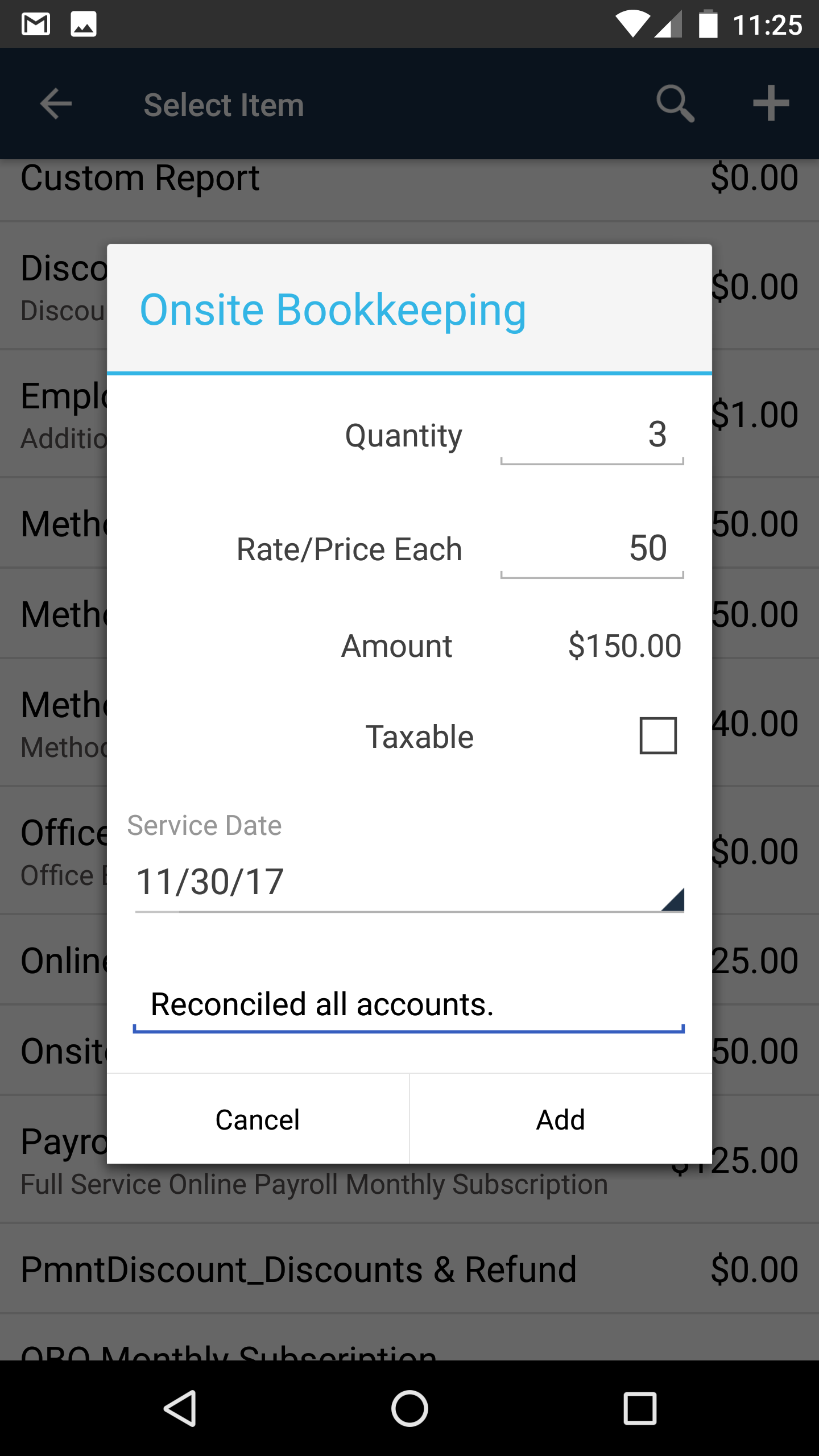
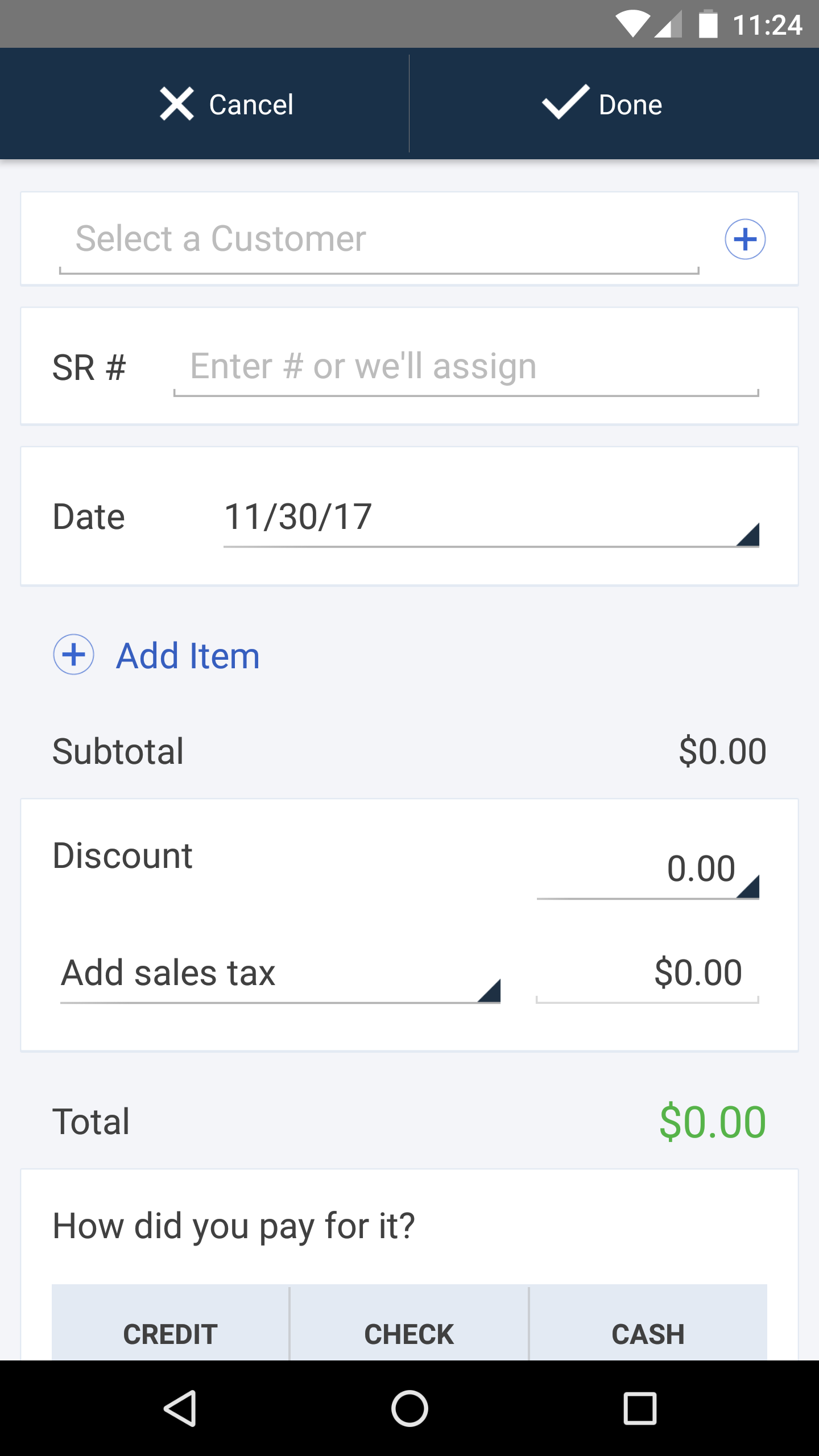
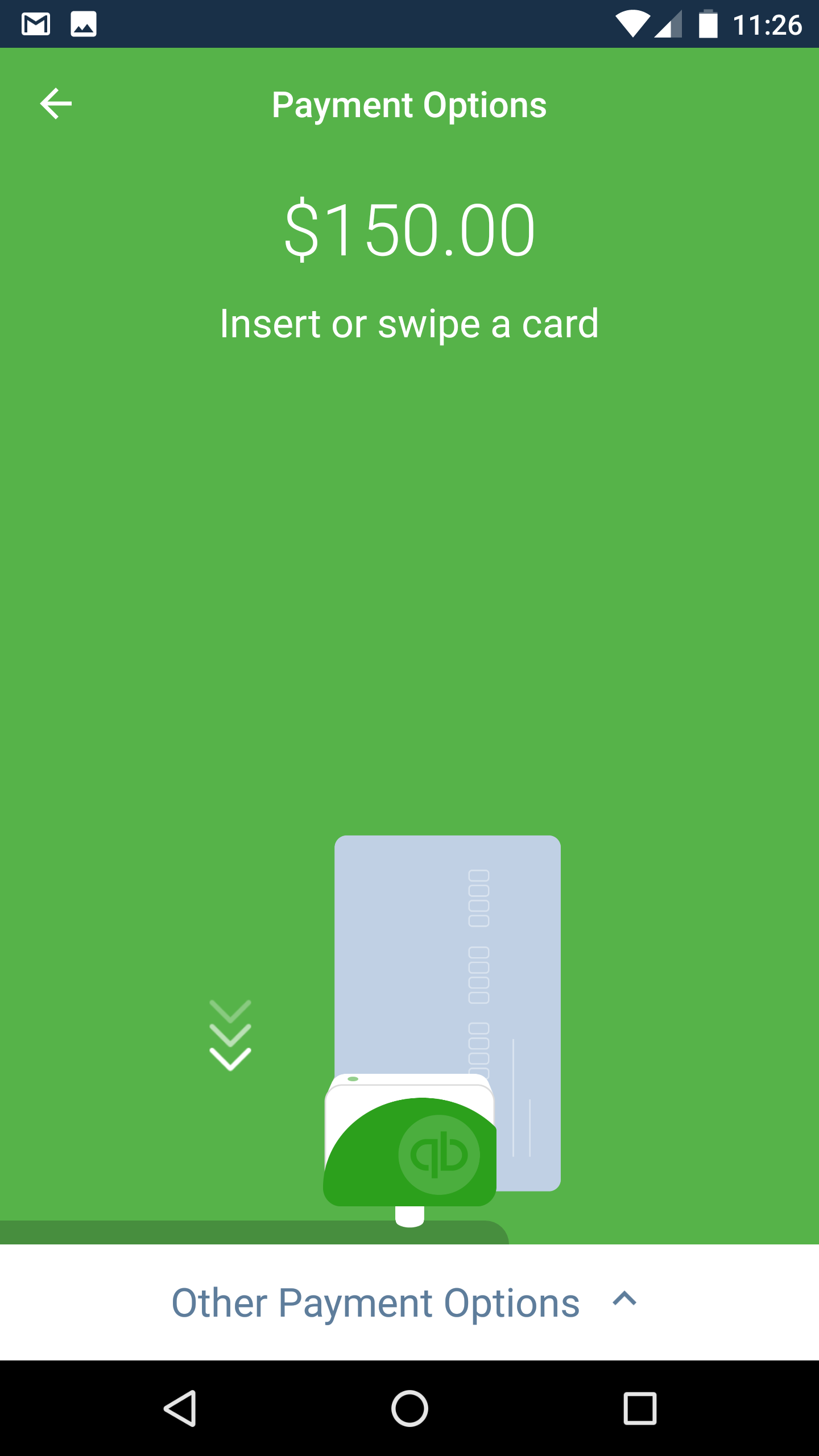
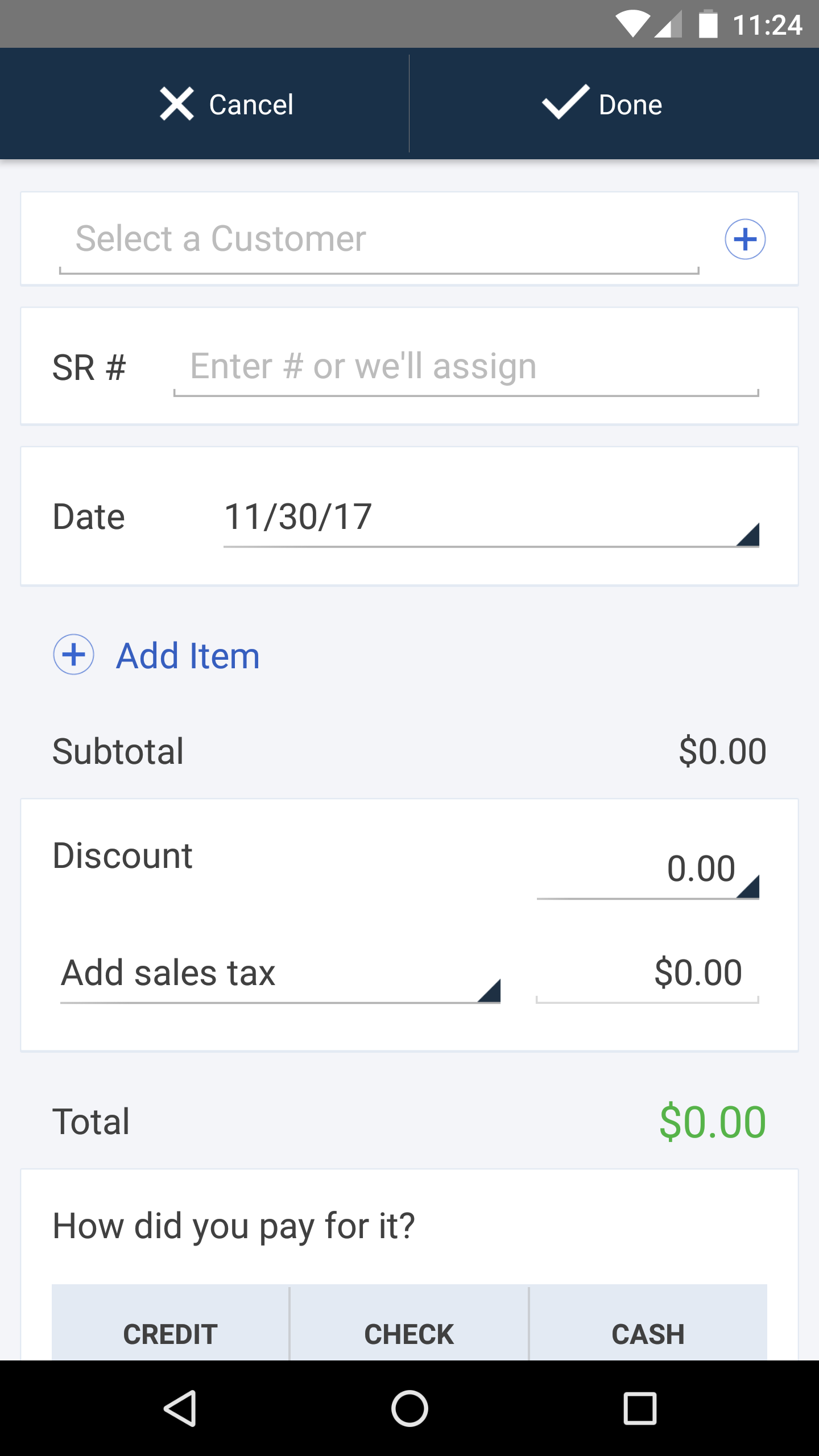
But that has all changed! I don't know when it started to work, but I can now process credit cards within the QBO app. This is a total game changer because I can select the products or services already in QuickBooks with pricing, create a sales receipt, and email it off to my client in record time. And the batch is created automatically when the money is deposited into my bank account.
For small businesses that are in a field services industry (Plumbers, HVAC, etc.), this would mean not having to use another app for getting signatures on quotes and receiving deposits or payments, all within the QBO app. Even businesses that do point of sale (POS) transactions (counter restaurants, small shops, etc.), this could work on a tablet to process receipts and eliminate the accounting nightmares that other services like Square, Shopkeep, and Revel would normally cause.

Catch Up or Start a New File in QuickBooks in Record Time
Is your QuickBooks a huge mess? This post is a must read.

As a QuickBooks ProAdvisor, I have seen all of the "disaster" scenarios, including:
A client's computer crashes. The computer's hard drive is toast and they can't recover their QuickBooks Desktop (QBD) company file. To make matters worse, for some reason or another, they don't even have any recent backups.
A client using QuickBooks Online (QBO) connects and syncs transactions from a third party POS app. However, deposits are added to income accounts with more detail via downloaded transactions in Banking instead of matching to imported deposits. A duplication of income and a mess of unneeded transactions persist for months to years.
A client who never used QuickBooks before gets audited by the IRS. All of the sudden, they need years of data in QuickBooks so that correct financial statements can be generated.
While this news is always heartbreaking for me, it is worse for my client having to make the decision to work with an old backup and catch up or start fresh with a new QuickBooks company file. Or for the QuickBooks Online client to decide between fixing existing data or creating a new account, these are not easy decisions to make.
Fortunately, I have tools that can help my clients no matter what recovery plan we agree upon. Using the Bank Feeds in QBD or the Banking center in QBO, the processes of adding hundreds of historical transactions becomes painlessly feasible. However, some banks may only allow downloading 90 days to 6 months or a year of transactions from their online banking websites. Or they may not even offer a .QBO (QuickBooks Web Connect) file download, the only type that can be imported into QBD.
The way around this limitation is to use bank statements, either filed paper statements or downloaded PDFs. These can be converted to .QBO files and imported into QuickBooks. Using bank rules, the process of categorizing and adding transactions can be sped up. And with QBO, you can even have bank rules that
automatically
add hundreds of transactions that match a bank rule.
For more complex cleanup situations, it is possible to delete hundreds to thousands of erroneous transactions. Or it may be necessary to export certain transactions from one account/file, to be imported into another QBO account or combined with another file.