

Import Statements and Reconcile with Attachments in QuickBooks Online

One of my favorite features in Quicken was the ability to attach statements to bank and credit card accounts. When Quicken was sold by Intuit to an investment firm, I converted my Quicken file to QuickBooks Online (QBO). One of the best features in QBO is the ability to attach files, up to 20MB, to each transaction. However, there has been no way to attach statements to any account in the Chart of Accounts like you can attach documents to Customers and Vendors. I requested this feature years ago and while it has not been implemented, the team at Intuit created something even better.

Statement Import
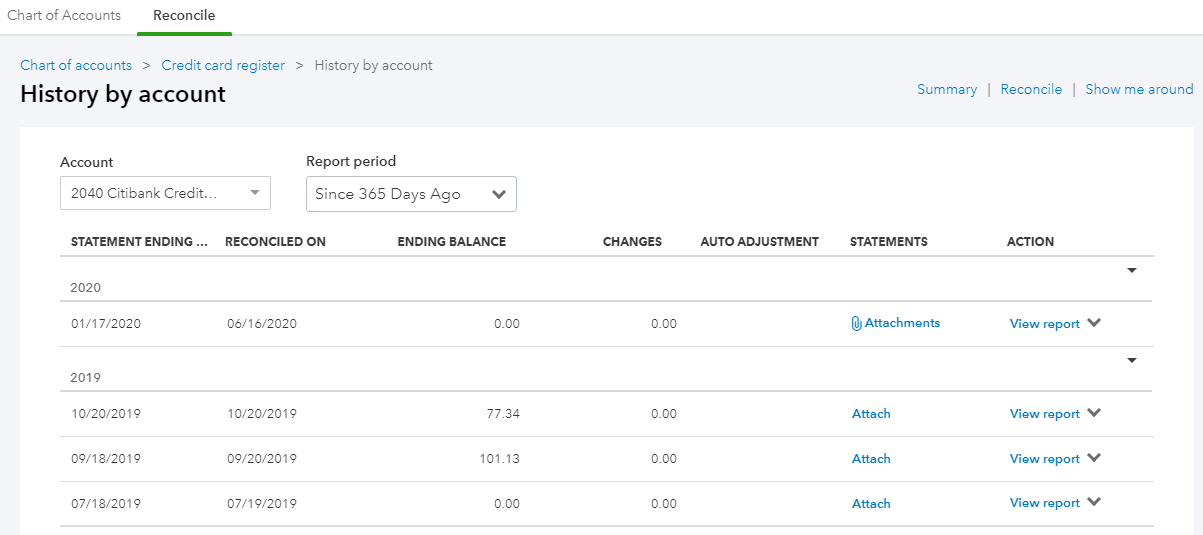
While some features have only been rolled out to some QBO accounts, it looks like bank and credit card accounts connected in Banking will automatically have their bank statements imported into QBO. This is found on the Reconcile screen as shown above. I have not seen any accounts yet that have had statements already imported automatically.

I am assuming this will happen because there is an Unreconciled tab when clicking on the View statements button. This is a wonderful way to help bookkeepers and accountants that reconcile their clients’ accounts in that they will no longer have to ask for statements.
Attach Statements

The View statements button doesn’t show up until after an account has been reconciled (or maybe when statements can be imported automatically) and an attachment has been added after clicking on the Attach statement button.
This pop up shows up on the right side of the History by account screen for the account that was just reconciled. The options to either Drag and drop or browse to upload are the same as other attachments.

This type of attachment is unique in that is not linked to a transaction or list item but rather to an activity, the Reconciliation. I also like how I can add attachments to previous reconciliations. What is currently missing is the ability to batch export (download) attached statements, as they are not listed in the Attachment page. Or it would be nice to be able to do this in History by account screen.

A Must Have App for Simple and Mobile Inventory for QuickBooks

Inventory is probably one of the biggest challenges for QuickBooks Users. Even for businesses that think they are small and not complicated, the processes involved for tracking purchases, stocking inventory, and maintaining accurate quantities on hand can be a nightmare. Both QuickBooks Online (QBO) and QuickBooks Desktop have inventory capabilities; however, either additional functionality or more efficient processes are needed that neither one can provide alone.

QuickBooks Online
QBO is great for simple inventory control with the added bonus of using the FIFO method for inventory valuation. Currently, this is some of what is missing:
Sales or Work Orders. These transactions are necessary for managing open customer orders, picking and packing, and tracking backorders.
Item Receipts. These transactions are needed to add to the quantity on hand for items received, which may be before a bill is even received.
Multiple warehouses and other locations such as vans or trucks that hold stock.
Bin or Lot Tracking with Serial Numbers and Expiration Dates.
Assembly items.
Barcoding.
I do love the fact that QBO is web-based and that there is a mobile app that can perform a lot of functions out in the field, such as sales receipts with credit card payments. And there are quite a number of 3rd party apps that I have tested that are full on inventory solutions. The problem with almost of all of them, in my opinion, is that they don’t use the inventory in QBO.

HandiFox
HandiFox is the exception. This app uses the inventory in QuickBooks and syncs transactions bidirectionally with it, ensuring accurate financials and correct inventory valuation. Also, the design interface is user-friendly and easy to navigate in both the web-based and mobile app versions. Plus, there is so much more it can do than what I have listed above. And it works with both QBO and QuickBooks Desktop.

QuickBooks Enterprise with Advanced Inventory
QuickBooks Enterprise (QBES) has the most functionality of all QuickBooks products and alone can handle the most complex inventory processes. While there is no mobile app, there is a mobile warehouse app when Advanced Inventory is turned on. This requires the Platinum subscription, which is the most expensive tier of the required subscription. And it is somewhat limited currently as to what it can do. Here is a comparison with what HandiFox can do:


How To Work Remotely

Due to the coronavirus (Covid-19) and most businesses not being able to operate face-to-face, workers are now forced to work remotely. I have always done remote/online sessions with clients and when I travel, I need the tools to be able to help my clients. Since I am currently not doing any onsite visits with clients, I am now doing everything remotely and am happy to share how I am still able to run my business during these tough times.

Go Web-Based and Paperless
For accounting purposes, I run my business with QuickBooks Online (QBO). Until several years ago, I was using QuickBooks Desktop (Enterprise Solutions), but when the new version of QBO came out in 2014 and the mobile app for desktop was discontinued, I made the switch and never looked back. Now, I am able to connect thousands of other web-based apps that sync seamlessly with QBO such as Gusto for payroll and Receipt Bank for receipts.
Choose a Platform
Whether you are a fan of Microsoft, Google, or Apple, choose one and focus on all the apps that are part of their ecosystem. They usually don’t like to play nicely together, so it’s not a good idea to intermingle. I used to love Outlook (desktop version) but got frustrated with syncing Google Calendar. And since my personal email was already with Gmail, it made sense to switch my business to G Suite. This was easily done by moving my domain to Google and getting rid of hosting my website and migrating my email to Gmail.
I have always used Android phones and with a Chromebook, all my syncing of data dreams came true. I ditched Verizon and switched to Google Fi, mostly because I could use my phone pretty much anywhere in the world using my existing data plan, but also because it is inexpensive: $20/month for unlimited calls and texts + $10/GB of data. My business phone number is via Google Voice and I use Google Hangouts for calls on my computer and phone. I especially love the transcription of voicemails sent to email and being able to send text messages using my browser. Speaking of, QuickBooks Online works best with the Chrome browser. And it very easy to separate personal and business accounts with different Google profiles.

Make Connections
Use apps that bridge the gap and sync with each other. I use Method CRM to create leads in Gmail. Leads converted to customers sync to QuickBooks Online. I also use Zapier to do two “zaps” at the same time: add the customer to Google Contacts and a MailChimp list.
Stay in Touch
There are a ton of apps for screen sharing and over the years I have use Mikogo, Join.me, Google Hangouts. But my favorite so far has been GoToMeeting. Sometimes there are issues with Mac users, having to change system settings in order to become the presenter and give keyboard/mouse control, and even so, sometimes I am still not able to makes changes on their computer. But features such as being able to record meetings and incorporate GoToMeeting with my scheduler and Google Calendar make it the winner.