

Year End Tasks You Should Be Doing Now in QuickBooks

As 2020 comes to a close, thankfully, now is the time to get a head start on organizing your books and closing out the year in QuickBooks.
Apply for PPP Loan Forgiveness
While it is still fuzzy as to the deductibility of expenses used in forgiveness of a PPP loan, borrowers who took PPP loans of $50,000 or less to pay for qualified expenses, such as payroll, mortgage interest payments, rent, and other eligible costs, can apply for total loan forgiveness now. The application is simpler and can be completed quickly.
Reconcile All Accounts in QuickBooks
Frequently put off, it is important that all accounts, not just bank and credit card accounts, are reconciled through at least the 3rd quarter. This includes loan and other long term liability accounts. Void any uncleared transactions. Contact vendors of any uncleared checks. Verify sales tax and payroll liability account balances are correct, as applicable. Reconciliations confirm that what is in QuickBooks matches what has happened dollar for dollar in real life.
Check Financial Statements
Create a Profit and Loss statement on an accrual basis. Even if you file on a cash basis, this will ensure that you aren’t missing any transactions that may have been miscategorized or duplicated. Also create a Balance Sheet and check for accounts that don’t have normal balances, such as negative expenses, liabilities, or assets. If you use subaccounts, make sure that there are no balances in the parent account. In QuickBooks desktop, this will appear as Account - Other.
Run Other Reports
Create a Custom Transaction Detail Report (desktop) or Transaction List by Date (QBO) and group by Name (Payee) and filter for expense type transactions. If all expenses have a payee or vendor name (recommended), then verify the split or category is consistent for each name, as applicable. In QuickBooks Online, navigate to Expenses and make sure all transactions have attachments (recommended). I use Receipt Bank to streamline this process.
Write Off Bad Debt
Run an A/R Aging Summary report. Attempt to collect on any balances over 90 days past due. If uncollectible, create credit memos to a Bad Debt item posting to a bad debt expense account and apply to overdue invoices.
Evaluate Business Performance and Processes
Run the Business or Company Snapshot. Compare previous year to current year income and expenses. Determine if switching to a better payroll service would benefit the company. Investigate apps to eliminate duplicate entry or to improve efficiency. Hire a ProAdvisor if you can’t do all this yourself and need help.

Beware: New Banking Page in QuickBooks Online Confuses
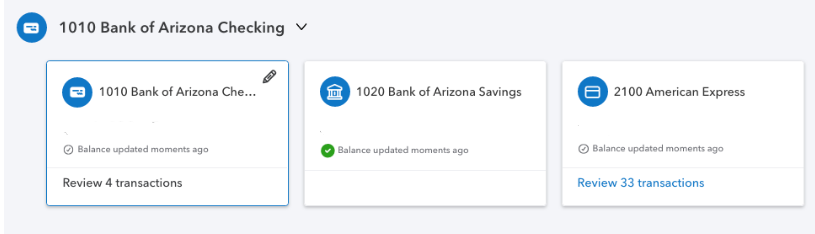
New Banking Page
What has changed
A couple of my clients have pointed out to me recent changes in their QuickBooks Online accounts that is causing confusion and dissatisfaction. Apparently, Intuit changed the look of their Banking page. Unfortunately, as a QuickBooks ProAdvisor, I was not made aware of this update and I participate in the monthly In The Know webinars on QuickBooks Online Updates.
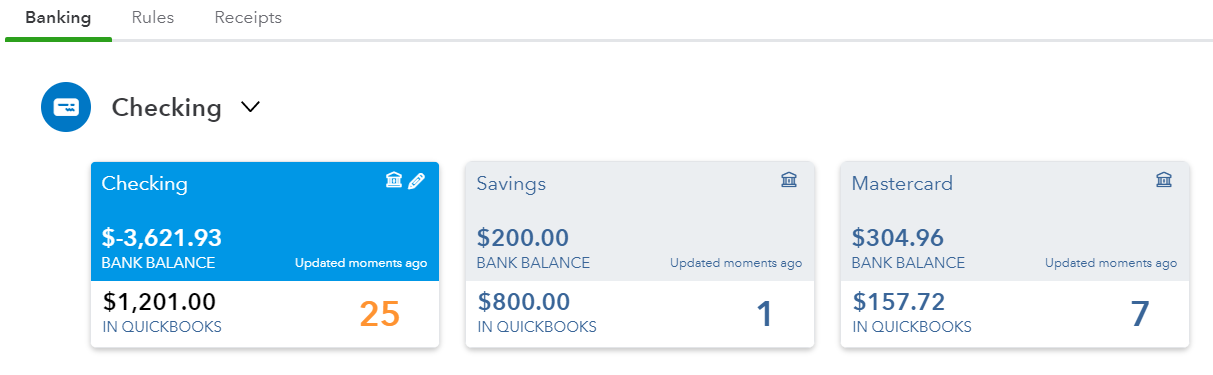
Old Banking Page
First off, the look of the bank and credit card tiles has changed. The font is a lot smaller; it is so much harder to read. What I have always loved about QBO over QuickBooks Desktop is the use of large fonts, so this is an unwelcome change.
The active tile is just outlined in a thin blue line instead of the having the Bank Balance info highlighted in blue.
The number of transactions to review is much smaller.
There is no differentiation between the In QuickBooks balance and the Bank Balance. It is not clear which balance is even being displayed here.

New For Review Grid
Seconly, under the tiles in the For Review section, there have been significant changes, too. While I like the bigger buttons in the Action column (notice how the column title has been removed), their new titles are confusing. The Confirm button especially will cause problems because the Assign To account suggested by QBO is probably wrong. The first reaction is to just click on this button when in reality, the downloaded transaction should be reviewed. I believe the Review button is suggesting an account previously used when adding a downloaded transaction. Both the Review and Confirm buttons really require the same actions from the user: to click and review the correct account, previously known as Add.
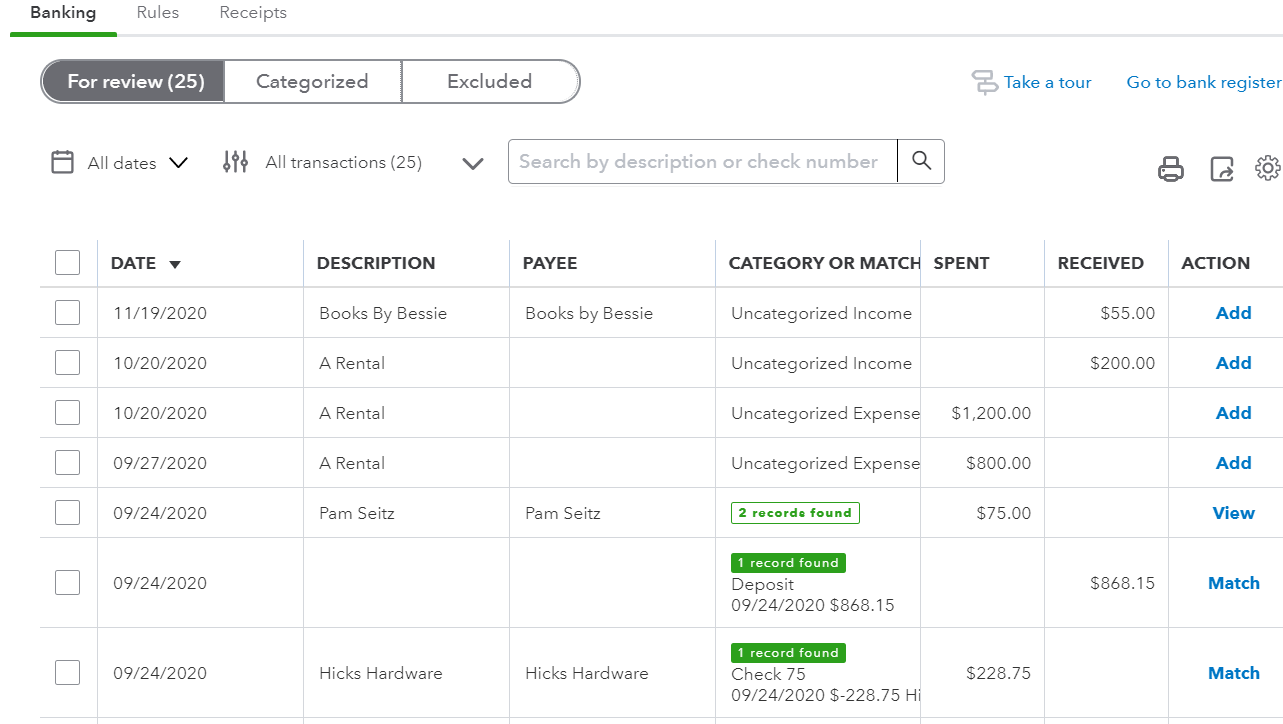
Old For Review Grid
Match has glaringly changed too. It has been replaced with the Review button with the number of records found under Category Or Match column, but not highlighted or outlined, making it easier to miss. The word Match made more sense because it confirmed that only one transaction already in QBs matches the one downloaded from the bank or credit card. The old action View meant that there was more than one transaction already in QBs and that you have to click on the transaction to view the drawer that shows the list of transactions that are potential matches to select from.
What you can do
It is not clear whether these are temporary changes or test situations imposed on a select group of accounts or indications of what updates are coming for all QBO accounts. If the latter, I suggest that all QBO users submit feedback to prevent these changes from being implemented. This can be done via the Gear icon and Feedback under Profile. For those accounts that already have these changes, I suggest submitting feedback also so that these updates get rolled back to the older version. Intuit takes feedback submitted this way very seriously.
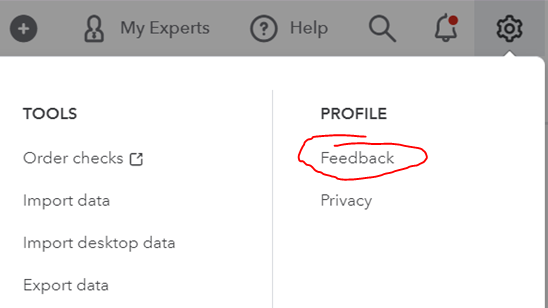
How to submit feedback
Is QuickBooks Desktop Going Away?

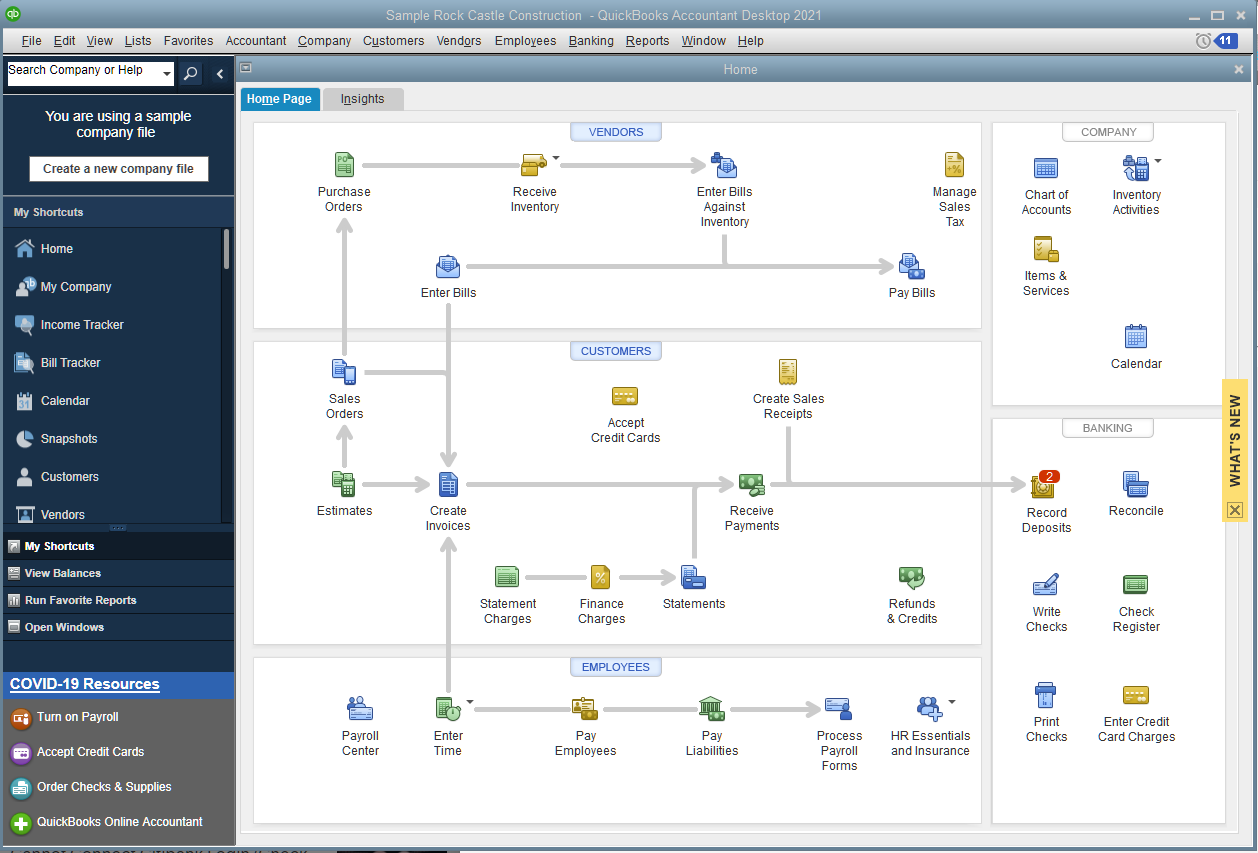
When QuickBooks Online (QBO) was revamped and marketed like crazy in 2014, I predicted that QuickBooks Desktop (QBD) would be discontinued starting in 2018, with the 3 year sunset window culminating in a complete phase out in 2021. Well, that never happened, at least not any indication of Intuit pulling the plug on QBD.
QuickBooks Desktop 2021 Released

Instead, Intuit continues to improve QBD, so much so that it is starting to look like QBO, especially with the latest release of QuickBooks Desktop 2021. I have always touted the superiority of the Banking page in QBO for its automation of downloading transactions from bank and credit card accounts and auto-categorization of transactions. Even the Rules were more sophisticated with the ability to create multiple conditions. But now you can turn on Advanced Mode for Bank Feeds in QuickBooks Desktop 2021, which essentially embeds a web page that looks very similar to the Banking page in QBO, with tiles for the accounts and wider rows with larger fonts that make it easier to view downloaded transaction detail. It still doesn’t automatically download transactions like it does in QBO (you have to click on Update). So instead of hardcoding the page using the same Windows code that is seen with other windows in QBD, Internet Explorer is used to display the URL for the Bank Feed in Advanced Mode.
Features Restricted by Subscription

Another new feature that works off of the QBO playbook is Receipt Management; however, it is not available in QuickBooks Desktop Pro or Premier, only the Plus versions of those, which is based on a yearly subscription. Similarly, this feature is available in the subscription-based QuickBooks Enterprise. Receipt Management in QBD looks and works very similarly to the Receipts page in QBO, again using a web page within QBD. In my tests, this feature still lacks much functionality compared to Receipt Bank.
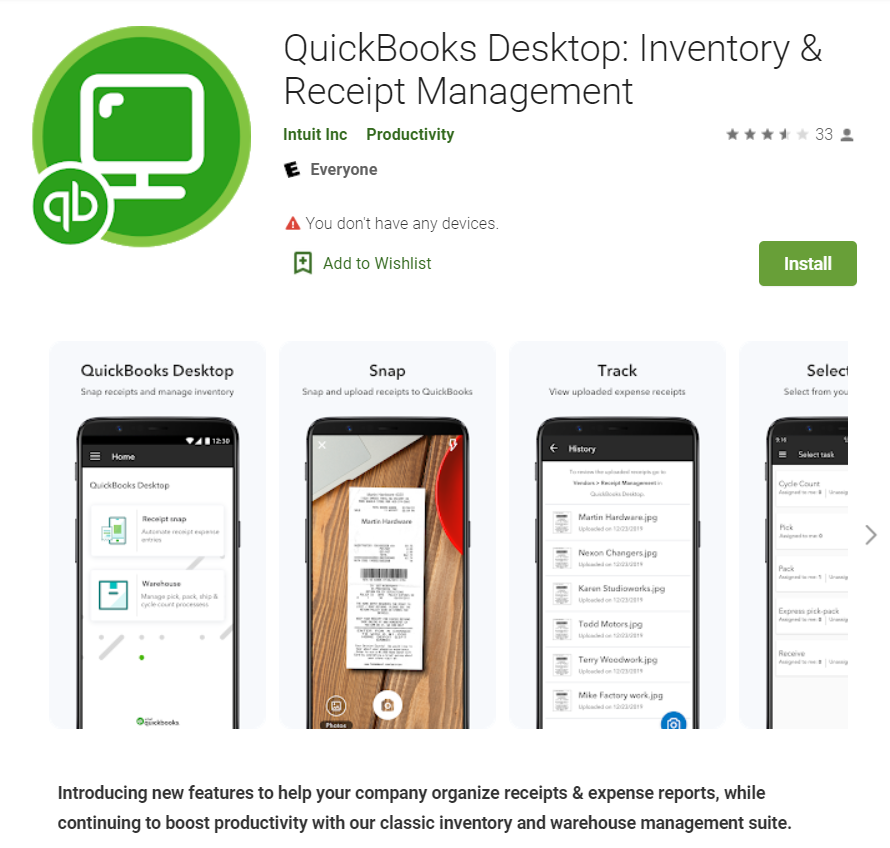
Intuit discontinued a mobile app for QBD years ago, but in its place came a new app that only can be used with the Advanced Inventory module for QuickBooks Desktop Enterprise, available only in the Diamond (highest tier) subscription, currently with a retail price of over $3,800 for one user per year. It seems odd that Receipt Management would only be available in an app that previous was only for mobile warehouse management, although somewhat lacking compared to other mobile apps.
So while desktop is not going away, it is still relevant for the subscription model of Plus and Enterprise, and I would expect more features added only to these versions. I also expect to see these features as embedded web pages in the Windows program and in the mobile apps. It seems like desktop is turning into a hybrid of both a desktop program and a series of web pages.
Personally, I prefer the look of the web pages (and QBO in general) compared to the small fonts used in QBD’s lists and centers. And I can log into QBO and start working faster than launching QBD and waiting for it to load (and being road blocked by pop ups), among many other advantages. I think it will only be a matter of time where the desktop will morph into something so similar to QuickBooks Online, that desktop will no longer be relevant, at least starting with the non-subscription versions.